


How to Map a Network Drive: Use File Explorer or CMD Easily
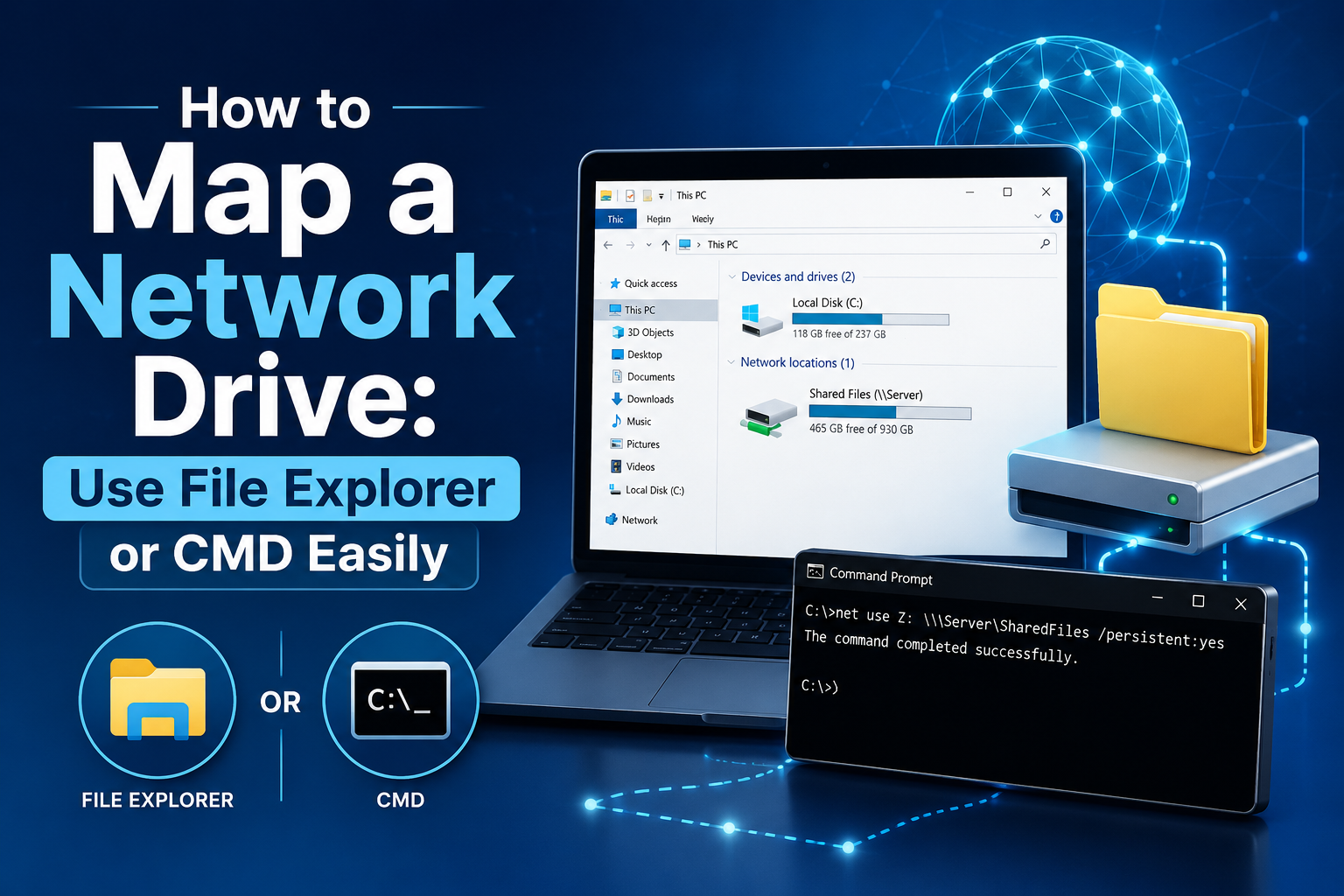
Better data sharing between teams results in enhanced productivity, which is why having assets on the same network plays an essential role in streamlining the entire workflow. If you have access to the same network, then sharing information and data can also be completed with ease and safety. Fortunately, Windows 11 permits network drive mapping, which means that it assigns a drive letter to a shared folder that is present on a different device or server within the same network.
Mapping a network drive allows people to create a persistent and convenient link between two devices or serves to access resources and other data. From files to backups, if you map a network drive, people in a team can access this data for a collaborative workflow. Now, if you wish to learn how to map a drive, then you do not have to worry, as this guide will ensure that you have the steps required for the same.
Prerequisites before mapping a network drive
Before you start, there are a couple of things you need to complete first:
-
Get Network Discovery and File Sharing enabled: Go to Control Panel > Network and Sharing Center > Change advanced sharing settings. Next, you need to turn on Network discovery and also File and Printer sharing for the current profile, not the others.
-
Then you’ll want the network path of the shared folder: You’ll use the Universal Naming Convention, yep, UNC path, for the folder you want to map. It normally looks like this: \\ServerName\SharedFolder
-
Check access credentials: Sometimes, user credentials are needed if the shared folder is protected. Make sure your username and password are correct, and if Windows asks you to type them in while mapping the drive, do it there.
-
Check for administrative rights: Not always required, but admin privileges are a good idea, especially if you’re setting up mapped drives for more than one person, or doing it via some little script thing.
Procedures to Map a Network Drive Easily
There are two different methods that we are giving here to map network drive cmd easily.
Method 1: Map a Network Drive through File Explorer (GUI)
-
Start the process by pressing the Windows key + E to bring up File Explorer.
-
In the left pane, click “This PC”. Now, look for the three-dot menu up top and choose “Map network drive”.
-
In the dialog that pops up: Pick a drive letter (like Z:).
-
Type the folder path, something like \\Server\SharedFolder (use the real server and share).
-
If you want it to stay, tick “Reconnect at sign-in”.
-
If you need alternate permissions, tick “Connect using different credentials”.
-
Click Finish. If it asks, enter your credentials and save them.
-
After that, the mapped drive should show up under This PC, so it’s easy to grab.
Method 2: Map a network drive using Command Prompt
-
Open Command Prompt as an administrator.
-
Run this command: net use Z: \\ServerName\SharedFolder /persistent: yes.
-
Swap Z: for the drive letter you want.
-
Swap the UNC path to match your actual share.
-
If you don’t want it to reconnect at login, use /persistent: no instead.
-
Lastly, press the Enter key to complete the process.
You can also use the website Datarecovee to learn more about the mapping of a network drive.

 English
 Arabic
 French
 Spanish
 Portuguese
 Deutsch
 Turkish
 Dutch
Dutch
 Italiano
 Russian
 Romaian
 Greek
Greek