


Tally Cloud Access: How to Access Tally From Anywhere, Anytime
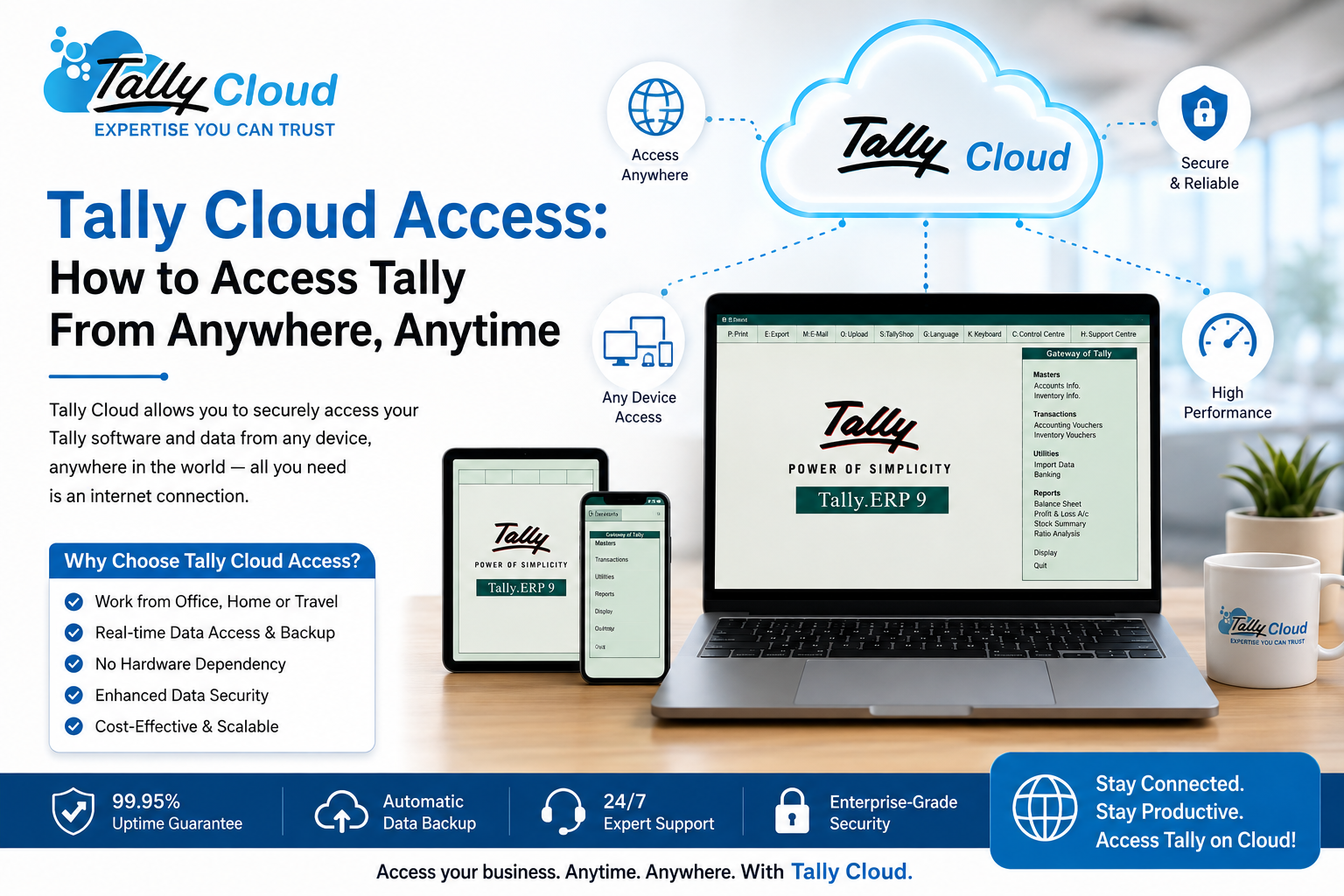
Ask any business owner using Tally what their biggest frustration is, and “I can only work on Tally from the office PC” comes up almost every time. That limitation disappears completely once you move to cloud-hosted Tally. This guide walks through exactly how Tally Cloud access works, what you need to get started, and how to access it securely from any device.
What Does “Tally Cloud Access” Actually Mean?
Tally Cloud access refers to logging into your Tally software remotely, over the internet, instead of opening it directly on a local office computer. Your Tally application and company data are hosted on a secure virtual server, and you connect to that server using a Remote Desktop Protocol (RDP) client — the same way you’d remote into any computer, except this one is purpose-built to run Tally 24/7 with backups, security, and uptime guarantees built in.
Once connected, Tally behaves exactly as it would on a local machine — same interface, same shortcuts, same reports — the only difference is where it’s actually running.
What You Need to Access Tally on Cloud
Getting access is simpler than most people expect. You need just three things:
- An internet connection — a stable broadband or mobile data connection is enough
- A device — Windows PC, Mac, Android phone, iPhone, or tablet all work
- An RDP client — a lightweight remote desktop app used to connect to your cloud server
Your cloud provider sets up the server, installs Tally, configures your license, and hands you login credentials. From there, access takes just a few clicks.
Step-by-Step: How to Access Tally Cloud
- Get your credentials — after subscribing, your provider shares a server IP/hostname, username, and password.
- Open your RDP client — built into Windows (Remote Desktop Connection) or downloaded as an app for Mac, Android, and iOS.
- Enter your server details — type in the hostname/IP provided and log in with your credentials.
- Launch Tally — once connected, open Tally exactly as you would locally, with your company data already loaded.
- Work as usual — create vouchers, run reports, generate GST returns, and print invoices to your local printer.
- Log out securely — disconnect the session when done; your data stays safely on the server, backed up automatically.
Accessing Tally Cloud From Different Devices
From a Windows PC: Use the built-in Remote Desktop Connection app — no extra installation needed.
From a Mac: Download the Microsoft Remote Desktop app from the App Store, add your server details, and connect.
From Android or iPhone: Install an RDP client app, enter your server credentials, and access full Tally functionality on the go — ideal for checking reports or approving entries while traveling.
Multi-user access: If your plan supports multiple users, each team member gets their own login, and everyone can work on the same live data simultaneously — no waiting, no version conflicts, no emailing backup files.
Is Remote Tally Access Secure?
This is the question most businesses ask before making the switch — and rightly so, since financial data is at stake. Reputable Tally Cloud providers secure access through:
- Encrypted RDP connections between your device and the server
- Restricted user permissions so each login only accesses what it should
- Tier 3 data center hosting with physical and network-level security
- Continuous monitoring to detect and block unauthorized access attempts
- Scheduled automated backups so data is recoverable even in a worst-case scenario
As long as you’re using a trusted provider and following basic practices — strong passwords, not sharing credentials, logging out on shared devices — cloud access is generally more secure than a single unprotected office PC.
Common Access Issues and Quick Fixes
- Can’t connect to the server: Check your internet connection first, then confirm the server hostname/IP hasn’t changed.
- Slow performance: Usually a bandwidth issue on your local network rather than the server itself; a wired connection often helps.
- Login not working: Double-check for typos in the username/password, or reach out to support to confirm your account hasn’t been locked after failed attempts.
- Printer not showing up: Most cloud setups support remote printer redirection — this usually needs to be enabled once during initial RDP configuration.
Why Businesses Prefer Cloud-Based Access Over Local Tally
- No dependency on one PC — work continues even if your office computer breaks down
- Consistent access across branches — every location logs into the same live data
- Access on the move — check numbers or approve transactions from anywhere
- Reduced IT burden — no local server to maintain, patch, or troubleshoot
- Business continuity — natural disasters, power cuts, or hardware failures at your office no longer put your accounting data at risk
Final Thoughts
Tally Cloud access essentially untethers your accounting software from a single physical location. Once set up, logging in takes seconds, works across devices, and gives your team the flexibility to run the business from wherever they are — without compromising on speed, security, or data integrity.
Need help setting up Tally Cloud access for your team? Get started with a free 7-day trial and see how simple remote access to Tally can be.
source- https://tallycloud.net/blog/tally-cloud-access-how-to-access-tally-from-anywhere-anytime/

 English
 Arabic
 Spanish
 Portuguese
 Deutsch
 Turkish
 Dutch
Dutch
 Italiano
 Russian
 Romaian
 Portuguese (Brazil)
 Greek
Greek