


Why Is My iPhone Stuck on the Apple Logo and How Can I Fix It?
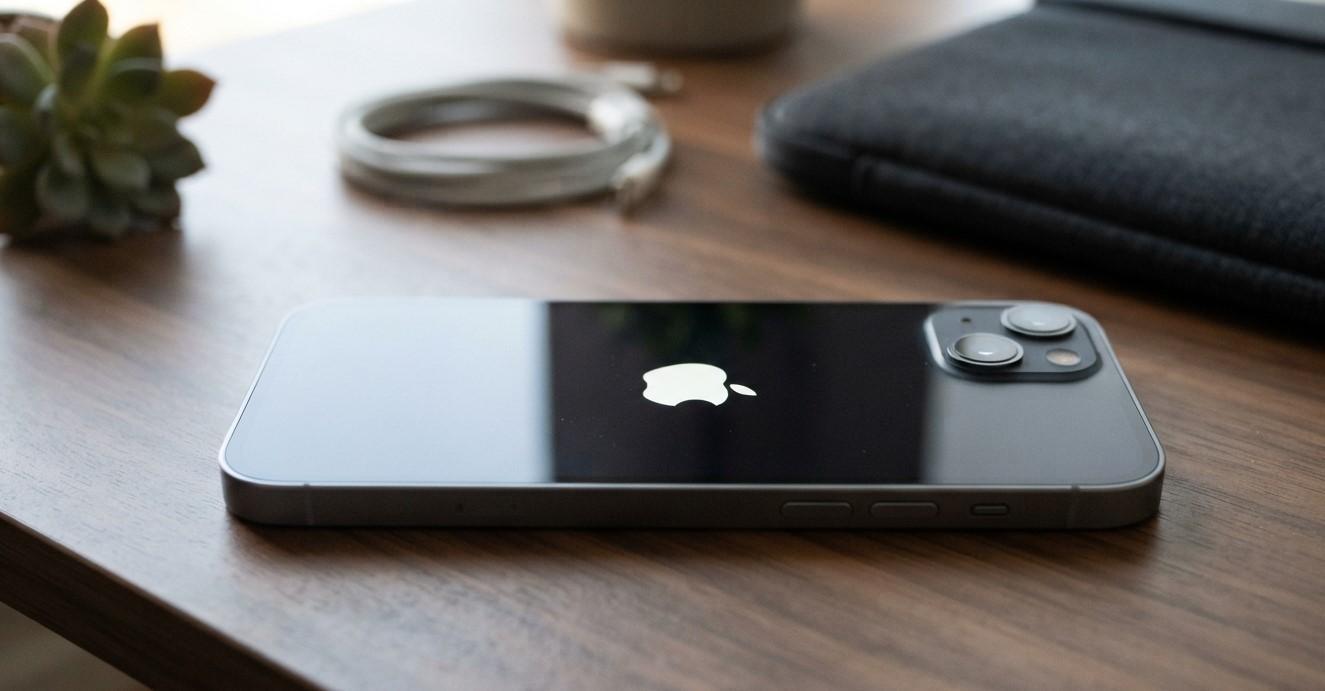
Seeing your iPhone stuck on the Apple logo can be worrying, especially when the device refuses to finish starting up. Sometimes the problem is caused by a temporary software glitch and can be resolved with a force restart. In other cases, an interrupted update, corrupted software, storage-related problem, battery issue, or hardware damage may require additional troubleshooting.
At Avenue D Cellular, we help customers understand common iPhone problems and find appropriate repair solutions. If you are searching for cell phone repair brooklyn ny because your iPhone will not start properly or need iphone repair brooklyn for a device stuck on the Apple logo, knowing the possible causes can help you determine what to do next.
This guide explains why an iPhone can become stuck on the Apple logo and the troubleshooting steps you can try before seeking professional assistance.
Table of Contents
- Why Is My iPhone Stuck on the Apple Logo?
- Common Causes of an iPhone Stuck on the Apple Logo
- Wait Before Trying Anything
- Force Restart Your iPhone
- Check Your Charging Connection
- Use Recovery Mode to Update iOS
- What If Recovery Mode Does Not Work?
- Could Hardware Damage Cause the Problem?
- When Should You Get Professional iPhone Repair?
- How to Prevent Future Startup Problems
- Frequently Asked Questions
- CTA
Why Is My iPhone Stuck on the Apple Logo?
The Apple logo normally appears briefly while your iPhone starts up. Once the startup process is complete, you should see the lock screen or passcode screen.
If the Apple logo remains on the display for an unusually long time and the phone does not continue starting, the device may be experiencing a startup problem.
The situation can be slightly different if you see an Apple logo with a progress bar. During an iOS update, restore, or data migration, the progress bar can sometimes move slowly or appear temporarily stationary. Apple recommends allowing the process to complete rather than immediately interrupting it.
If the progress bar has not moved for an extended period or the device becomes completely unresponsive, further troubleshooting may be necessary.
Common Causes of an iPhone Stuck on the Apple Logo
Several issues can prevent an iPhone from completing its startup process.
1. Temporary Software Glitch
A minor iOS problem can occasionally cause the device to freeze during startup. A force restart may clear the temporary issue and allow the phone to boot normally.
2. Interrupted iOS Update
If an update was interrupted because of a connection problem, insufficient power, or another issue, the iPhone may have trouble completing startup.
3. Failed Data Transfer or Restore
Problems can also occur while restoring a backup or transferring information from another iPhone. The Apple logo and progress bar may remain visible while the process is still working.
4. Software Corruption
Damaged or corrupted system files can interfere with the startup process. In some cases, reinstalling iOS through recovery mode may be necessary.
5. Battery or Power Problems
A weak or failing battery may prevent the iPhone from completing the startup process, particularly if the device has other symptoms such as unexpected shutdowns or difficulty charging.
6. Physical or Hardware Damage
A recent drop, liquid exposure, damaged internal component, or previous repair can sometimes contribute to startup problems. If basic software troubleshooting does not resolve the issue, hardware inspection may be necessary.
Wait Before Trying Anything
If your iPhone recently started an update, restore, or data migration and you see an Apple logo with a progress bar, don't immediately force the device to restart.
Apple explains that the progress bar can move slowly or appear static during certain operations. The amount of time required can depend on the number of files and the operation being performed.
If the progress bar is still progressing, allow the process to finish.
If it has remained completely unchanged for an extended period, you can move on to troubleshooting.
Force Restart Your iPhone
A force restart is one of the first troubleshooting steps to try when an iPhone becomes unresponsive.
iPhone 8 or Later
For iPhone 8 and later, including newer Face ID models:
- Quickly press and release the Volume Up button.
- Quickly press and release the Volume Down button.
- Press and hold the Side button.
- Continue holding the Side button until the Apple logo appears.
Apple recommends this procedure when an iPhone is unresponsive or stuck during startup.
iPhone 7 or iPhone 7 Plus
- Press and hold the Side button.
- At the same time, press and hold the Volume Down button.
- Keep holding both buttons until the Apple logo appears.
iPhone 6s or Earlier
- Press and hold the Home button.
- At the same time, press and hold the Side or Top button.
- Continue holding both buttons until the Apple logo appears.
If the force restart works, your iPhone should continue through the normal startup process.
Check Your Charging Connection
If your iPhone does not have enough power to complete startup, charging it may help.
Connect it to a reliable power source using a compatible charging cable and adapter. Leave it connected for a while before attempting another startup.
Also inspect the charging cable and port for visible damage or debris.
If the iPhone repeatedly shows the Apple logo, shuts down, and starts again, the problem may involve the battery, charging system, or software rather than simply a low charge.
Use Recovery Mode to Update iOS
If a force restart does not solve the problem, recovery mode may provide another option.
Apple recommends recovery mode in situations where the iPhone remains on the Apple logo for several minutes without a progress bar, cannot start normally, or cannot be updated or restored through the usual process.
You will need a Mac or Windows PC and an appropriate cable.
How to Enter Recovery Mode
For an iPhone 8 or later:
- Connect the iPhone to your computer.
- Open Finder on a Mac or the Apple Devices app on a Windows PC.
- Quickly press and release Volume Up.
- Quickly press and release Volume Down.
- Press and hold the Side button.
- Keep holding it until the recovery mode screen appears.
For an iPhone 7 or 7 Plus, hold the Side and Volume Down buttons together while connected to the computer.
For an iPhone 6s or earlier, hold the Home and Side or Top buttons together until the recovery mode screen appears.
Choose Update Before Restore
Once the iPhone is detected in recovery mode, your computer may give you options to Update or Restore.
If you have not already tried updating, Apple recommends trying Update first. This reinstalls iOS while attempting to preserve your personal data.
Restore is different. Restoring the iPhone reinstalls the software and erases the device's data. Therefore, you should understand the consequences before selecting Restore.
If the update succeeds, your iPhone may restart and return to normal operation.
What If Recovery Mode Does Not Work?
If recovery mode cannot update or restore your iPhone, there may be a deeper software or hardware problem.
Possible causes can include:
- Damaged system software
- Battery failure
- Charging or power problems
- Damaged internal components
- Liquid exposure
- Previous repair-related problems
- Faulty buttons preventing recovery mode
- A communication problem between the iPhone and computer
Apple notes that service may be necessary if recovery mode cannot update or restore the device or if the required buttons do not work properly.
At this point, repeatedly attempting random software fixes may not solve the underlying problem.
Could Hardware Damage Cause the Problem?
Yes. Although an iPhone stuck on the Apple logo is often associated with software, hardware problems can also prevent normal startup.
Consider professional inspection if the problem began after:
- Dropping the iPhone
- Exposure to water or another liquid
- Replacing the battery
- Replacing the screen
- Repairing the charging port
- Experiencing unusual overheating
- Repeated unexpected shutdowns
A technician can inspect the device and determine whether the problem is related to software, power, the battery, or another internal component.
When Should You Get Professional iPhone Repair?
Professional help is worth considering if your iPhone remains stuck on the Apple logo after trying a force restart and appropriate software troubleshooting.
You should also seek assistance if:
- The phone repeatedly restarts.
- It gets unusually hot.
- The device was recently dropped.
- The phone has liquid damage.
- Recovery mode does not work.
- The computer cannot recognize the iPhone.
- The iPhone has charging problems.
- Important data may be at risk.
If you need cell phone repair brooklyn ny, a professional diagnostic check can help identify whether your iPhone has a software or hardware issue.
For customers searching for iphone repair brooklyn, professional troubleshooting can also reduce the risk of accidentally making a software or hardware problem worse.
How to Prevent Future Startup Problems
Although not every startup failure can be prevented, a few habits can reduce the likelihood of software and hardware problems.
Keep iOS Updated
Installing available iOS updates can provide security improvements, bug fixes, and other system improvements.
Maintain Adequate Storage
Keeping your iPhone's storage from becoming completely full can make it easier to manage updates, apps, photos, and other data.
Protect Your iPhone From Physical Damage
A quality protective case and screen protector can reduce the likelihood of damage from everyday drops and impacts.
Avoid Extreme Heat
Excessive heat can negatively affect electronic components and battery performance. Avoid leaving your iPhone in very hot environments.
Back Up Important Data
Regular backups can make recovery easier if your iPhone experiences a serious software problem or needs to be restored.
Frequently Asked Questions
Why does my iPhone keep showing the Apple logo?
Repeatedly showing the Apple logo can indicate a software problem, interrupted update, battery issue, or hardware fault. A force restart is a useful first troubleshooting step.
How long should an iPhone stay on the Apple logo?
Startup time can vary, particularly after an update, restore, or data migration. If there is a progress bar, allow the process time to complete. If the Apple logo remains for several minutes without a progress bar, Apple recommends considering recovery-mode troubleshooting.
Will a force restart erase my iPhone?
A standard force restart does not normally erase your personal data. It simply forces the device to restart when it is unresponsive.
Will recovery mode erase my data?
Choosing Update is intended to reinstall iOS while preserving personal data. Choosing Restore erases the iPhone and reinstalls the operating system.
What if my iPhone is stuck on the Apple logo after an update?
If the progress bar is still moving, give the update time to finish. If it remains unchanged for an extended period, you can try a force restart and, if necessary, recovery mode.
Can a bad battery cause an iPhone to get stuck on the Apple logo?
A failing battery or power-related hardware problem can contribute to startup failures, particularly when the phone also has charging problems or unexpected shutdowns. Professional diagnosis can help determine whether the battery is responsible.
Should I restore my iPhone immediately?
Not necessarily. If your data is important, try less destructive troubleshooting first. Apple recommends trying Update before selecting Restore when using recovery mode.
Get Professional Help for an iPhone Stuck on the Apple Logo
An iPhone stuck on the Apple logo can result from something as simple as a temporary software glitch or something more serious involving the battery or internal hardware. Start with the safest troubleshooting steps, such as waiting for an active update to finish and performing a force restart. If those steps don't work, recovery mode may provide another option.
If the issue continues, professional diagnosis can help determine the actual cause without unnecessarily replacing working components.
At Avenue D Cellular, customers searching for cell phone repair brooklyn ny can get assistance with iPhone startup problems, software issues, charging problems, and hardware-related faults. If you're looking for iphone repair brooklyn, getting the device properly diagnosed is an important step toward finding the right solution.
Is your iPhone stuck on the Apple logo? Contact Avenue D Cellular for professional iPhone repair assistance and get your device properly inspected.

 English
 Arabic
 Spanish
 Portuguese
 Deutsch
 Turkish
 Dutch
Dutch
 Italiano
 Russian
 Romaian
 Portuguese (Brazil)
 Greek
Greek