


Why Is My Phone’s Screen Brightness Not Adjusting Automatically?
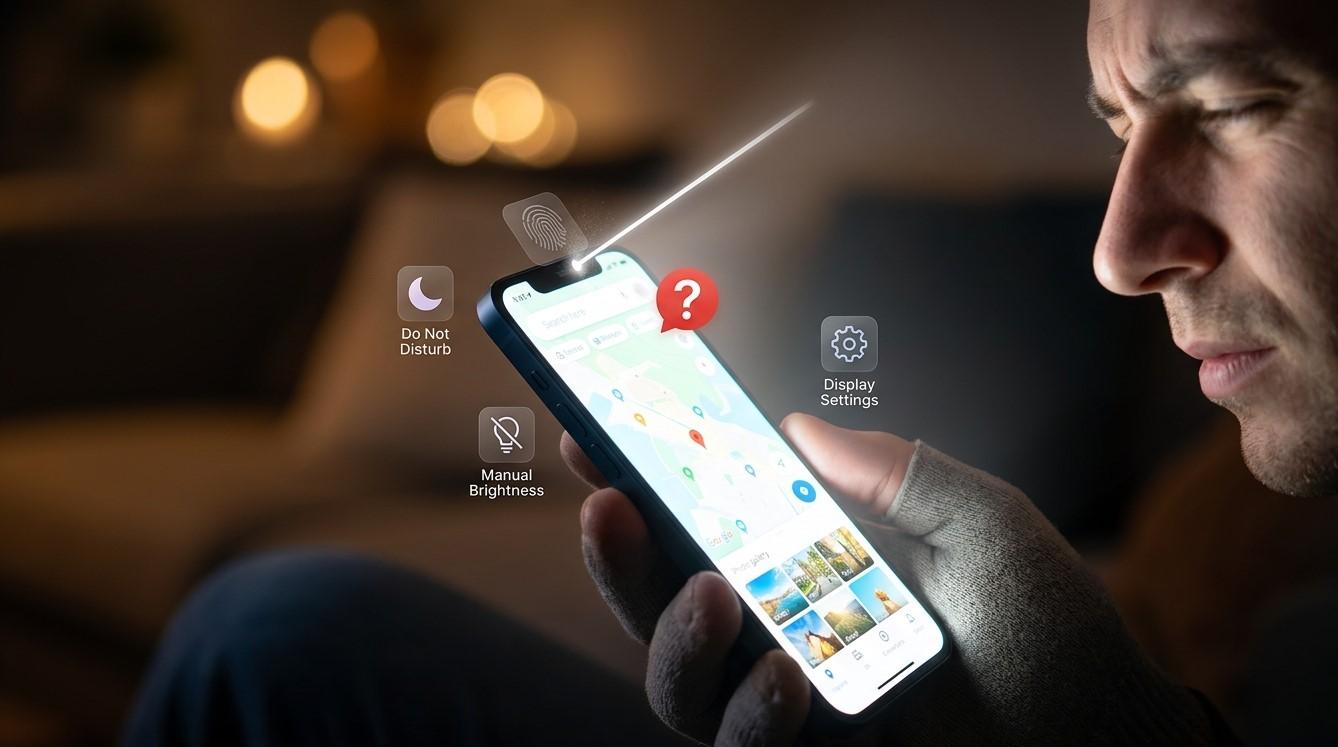
Automatic screen brightness is a convenient smartphone feature that adjusts the display according to the surrounding light. When you move from a bright outdoor environment into a darker room, your phone can lower the brightness to make the screen more comfortable to view. When you step into brighter surroundings, the display can become brighter so that text and images remain visible.
When automatic brightness stops working, the screen may remain too bright indoors or become difficult to see outdoors. The problem can be caused by a disabled setting, a blocked sensor, software glitches, battery-saving features, or even physical damage. Fortunately, many automatic brightness problems can be addressed with a few basic troubleshooting steps.
For customers looking for reliable Cell Phone Repair in Douglasville, GA, understanding how automatic brightness works can help determine whether the issue is a simple settings problem or something that requires professional diagnosis. Mobile Device Techs can assist with smartphone troubleshooting when display features stop working properly.
Whether you need Samsung Phone Repair Douglasville, GA or iPhone repair in Douglasville, GA, it is useful to identify whether the problem affects automatic brightness only or whether other display features are also malfunctioning. Customers experiencing related issues on compatible tablets can also consider Samsung Tablet Repair in Douglasville, GA for professional troubleshooting.
How Does Automatic Brightness Work?
Automatic brightness uses the smartphone's ambient light sensor to detect the amount of light around the device.
When the sensor detects brighter surroundings, the phone can increase screen brightness. When it detects darker surroundings, it can reduce brightness.
The exact technology and settings vary between smartphone models, but the feature generally depends on three things:
- The ambient light sensor
- System software
- Automatic brightness settings
If one of these components is not working correctly, the screen may stop adjusting automatically.
1. Make Sure Automatic Brightness Is Enabled
The first thing to check is whether automatic brightness has accidentally been turned off.
Smartphones allow users to manually control brightness, and certain settings or software changes can disable automatic adjustment.
Open your display settings and look for options such as:
- Auto-brightness
- Adaptive brightness
- Automatic brightness
- True Tone or related display options on supported devices
Make sure the appropriate automatic feature is enabled.
After enabling it, move the phone between a brighter and darker environment and give the device a few moments to respond.
2. Clean the Ambient Light Sensor
A dirty or blocked sensor can prevent your smartphone from accurately detecting surrounding light.
The ambient light sensor is generally located near the front-facing camera, earpiece, or top portion of the display. Its exact location depends on the device.
Dust, fingerprints, screen protectors, stickers, or cases can sometimes interfere with the sensor.
Use a soft, clean, dry microfiber cloth to gently clean the top portion of the phone.
Do not use excessive pressure or liquid around the display and sensor area.
After cleaning the device, test automatic brightness again.
3. Check Your Screen Protector
A screen protector can sometimes interfere with sensors if it is poorly positioned or designed incorrectly for the phone.
If the automatic brightness problem began after installing a new screen protector, check whether the protector covers the sensor area.
Do not immediately remove a properly installed protector unless you are comfortable doing so. Instead, inspect the top edge of the display and compare it with the phone's original sensor placement.
If the protector appears to be obstructing a sensor, replacing it with a compatible model may resolve the problem.
4. Restart Your Smartphone
Temporary software glitches can affect automatic brightness.
Restarting the phone is a simple troubleshooting step that can refresh system services and sensor-related processes.
Turn the device off completely, wait a few seconds, and then turn it back on.
Once the phone restarts, check whether automatic brightness responds when you move between different lighting conditions.
If the feature works normally after restarting but stops working again later, there may be an underlying software or application-related issue.
5. Check Battery-Saving Settings
Battery-saving modes can change how certain smartphone functions operate.
Depending on your device and configuration, power-saving features may limit background activity, performance, refresh rates, or display behavior.
Check whether a battery-saving mode is currently enabled.
Temporarily disable it and test automatic brightness again.
If the feature begins working normally after disabling power-saving mode, review your battery settings to determine whether the mode is restricting display behavior.
6. Turn Off and Re-Enable Automatic Brightness
Sometimes the automatic brightness setting itself may need to be refreshed.
Turn automatic brightness off, wait a few seconds, and then turn it back on.
After re-enabling the feature, place the phone in a bright environment and then move it to a darker area.
Give the sensor some time to respond rather than expecting an immediate change.
This simple process can sometimes correct a temporary software configuration problem.
7. Update Your Smartphone Software
Software updates can fix bugs that affect sensors, display functions, and system settings.
If your smartphone has an available operating system update, check the update settings and install it when appropriate.
Manufacturers regularly release updates that improve device performance and resolve software problems.
Before performing a major update, back up important information and ensure your phone has enough battery power.
If automatic brightness stopped working after a recent software update, check for another available update that may contain a fix.
8. Check for Third-Party Display Apps
Some applications can change or control display behavior.
Brightness-control applications, screen filters, blue-light filters, battery-management tools, launchers, and customization software can sometimes interfere with built-in display settings.
If automatic brightness stopped working after installing a new application, consider whether the app could be responsible.
Temporarily disabling or uninstalling the application may help identify the cause.
Only remove applications when you understand what data or settings may be affected.
9. Reset Display Settings
If the brightness problem continues, check whether your phone provides an option to reset display-related settings.
Some devices allow users to reset certain preferences without erasing personal files.
The exact options vary between manufacturers and software versions.
Before resetting anything, read the warning displayed on the screen. Avoid performing a full factory reset unless you have backed up your important information and have determined that simpler troubleshooting has failed.
A factory reset should generally be considered a later troubleshooting step rather than the first solution.
10. Check Whether Other Display Problems Are Occurring
Pay attention to whether automatic brightness is the only problem.
If the screen also flickers, changes brightness unexpectedly, shows lines, develops dark areas, or has inconsistent touch response, the issue may involve the display hardware or related components.
A single brightness problem may be software-related, but multiple display symptoms can provide evidence of a larger problem.
If the phone was recently dropped or exposed to liquid, hardware damage should also be considered.
11. Troubleshooting Automatic Brightness on Samsung Phones
Samsung smartphones commonly provide an Adaptive Brightness option that uses ambient lighting information to adjust the display.
If your Samsung phone's brightness does not change automatically, start by checking that Adaptive Brightness is enabled.
Then clean the sensor area, restart the phone, check battery-saving settings, and install available software updates.
If the problem continues, check whether a screen protector, case, or third-party application is interfering with the sensor.
If automatic brightness remains unavailable and other display problems are present, professional Samsung Phone Repair Douglasville, GA can help determine whether the issue is related to the sensor, display assembly, or software.
12. Troubleshooting Automatic Brightness on iPhones
iPhones use an ambient light sensor to help manage display brightness.
If automatic brightness is not working as expected, check the relevant accessibility and display settings to make sure automatic brightness has not been disabled.
Clean the upper display area and inspect the screen protector for possible sensor obstruction.
Restart the iPhone and install available iOS updates.
If the device has additional display problems, professional iPhone repair in Douglasville, GA can help determine whether a hardware component is contributing to the problem.
13. What About Samsung Tablets?
Some Samsung tablets include ambient-light sensors and automatic brightness features, while capabilities can vary by model.
If your tablet supports automatic brightness but does not adjust correctly, check the display settings, clean the sensor area, restart the tablet, and install available software updates.
If the tablet has also developed screen flickering, touch problems, unusual brightness changes, or other display issues, professional Samsung Tablet Repair in Douglasville, GA may be appropriate.
When Should You Seek Professional Repair?
Automatic brightness problems do not always require professional repair. However, an inspection may be useful if the problem persists after basic troubleshooting.
Consider professional assistance when:
- Automatic brightness never responds to changes in lighting.
- The phone's light sensor appears damaged.
- The display has physical cracks.
- The device was recently dropped.
- The phone experienced liquid exposure.
- The screen flickers or changes brightness unexpectedly.
- Other sensors are malfunctioning.
- A screen replacement was recently performed.
- Software troubleshooting has not solved the issue.
A technician can inspect the sensor, display assembly, connectors, and software behavior to determine the underlying cause.
For customers looking for Cell Phone Repair in Douglasville, GA, professional diagnosis can help prevent unnecessary replacement of components that are still functioning correctly.
How to Prevent Automatic Brightness Problems
Keeping your smartphone clean and protected can help maintain proper sensor performance. Avoid placing stickers or accessories over sensor areas.
Use screen protectors specifically designed for your phone model and make sure they do not interfere with the front sensors.
Keep your operating system updated and be cautious when installing applications that modify display settings.
If the phone suffers a drop or liquid exposure, have it inspected if new display or sensor problems appear.
Regularly backing up your data is also important. If a serious software problem eventually requires a reset or repair, a current backup can make the recovery process easier.
Final Thoughts
When your phone's screen brightness is not adjusting automatically, the cause may be a disabled setting, blocked ambient light sensor, screen protector, battery-saving mode, software glitch, third-party application, or hardware problem. Starting with simple troubleshooting can often identify the issue without requiring extensive repairs.
Check automatic brightness settings, clean the sensor area, inspect your screen protector, restart the phone, review battery-saving settings, and install available software updates. If the problem continues or is accompanied by other display problems, professional diagnosis can help identify whether the sensor or another internal component needs attention.
For customers searching for dependable Cell Phone Repair in Douglasville, GA, Mobile Device Techs can help troubleshoot a variety of smartphone problems. Customers needing Samsung Phone Repair Douglasville, GA, iPhone repair in Douglasville, GA, or Samsung Tablet Repair in Douglasville, GA can also seek professional assistance when display and sensor problems persist. Proper diagnosis can help determine whether the issue is related to settings, software, sensors, or hardware and guide you toward an appropriate repair solution.

 English
 Arabic
 French
 Spanish
 Portuguese
 Deutsch
 Turkish
 Dutch
Dutch
 Italiano
 Russian
 Romaian
 Greek
Greek