


How to Set Up IPTV on a Samsung Smart TV
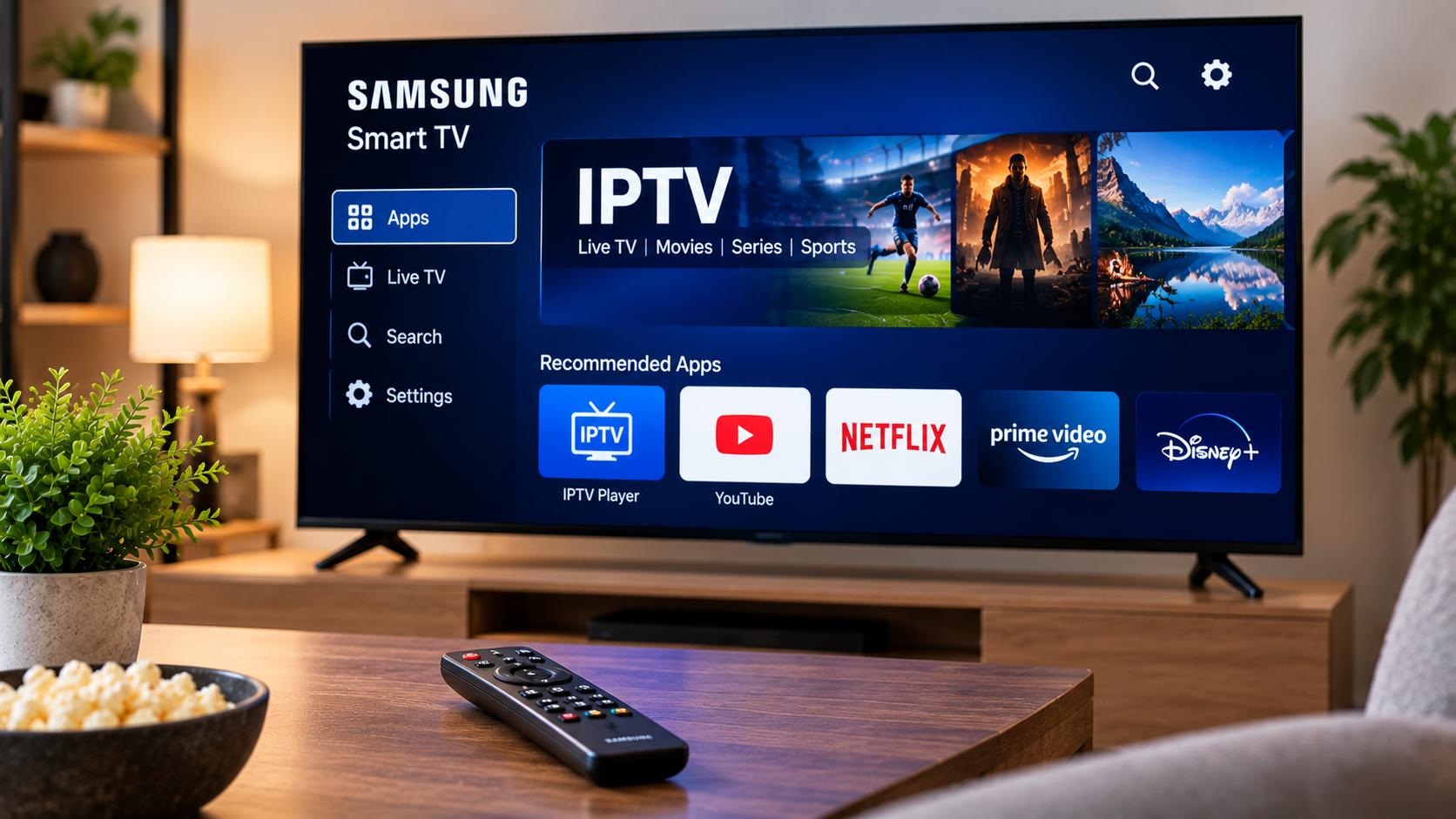
Samsung Smart TVs are widely used for streaming because they combine television viewing and internet-based entertainment in one device. With a compatible IPTV player, users can also access live television, sports, movies, series, and other content through an internet connection.
Setting up IPTV on a Samsung TV is usually straightforward, but the exact process depends on the television model, operating system, available applications, and the login method supported by the IPTV service.
Understanding these basics can help you create a cleaner and more reliable setup.
Can You Watch IPTV on a Samsung Smart TV?
Yes, many Samsung Smart TVs can run compatible IPTV player applications.
The IPTV player itself generally does not provide television channels. Instead, it acts as an interface for content supplied through an IPTV subscription or playlist.
Depending on the player and service, users may connect through:
-
M3U playlists
-
Username and password credentials
-
Server or portal information
-
Xtream-style account details
-
Other supported login methods
Application availability can vary between Samsung TV models and regions, so compatibility should always be checked first.
Check Your Samsung TV Model
Before installing an IPTV application, identify your television model and software version.
Newer Samsung TVs normally use the Tizen operating system. Older models may have different software and may not support the same applications.
You can usually find model and software information inside the television settings.
Knowing the exact model makes it easier to determine which IPTV players are compatible.
Find a Suitable IPTV Player
Open the application store on your Samsung Smart TV and search for available IPTV players.
Different apps offer different layouts and features. Some focus on simple live TV playback, while others include advanced organization tools.
Useful features may include:
-
Live channel categories
-
Movies and series sections
-
Electronic program guide support
-
Search
-
Favourite channels
-
Recently watched content
-
Playlist management
Choose an application that supports the account format provided by your IPTV service.
Add Your IPTV Account
Once the player is installed, open it and follow the setup instructions.
Some applications allow account information to be entered directly using the television remote. Others may provide a web-based activation method where playlist or login information is added through another device.
Enter every detail carefully.
A single incorrect character in a username, password, server address, or playlist URL can prevent the account from loading.
Users researching Swedish IPTV options and installation information can also review First Class IPTV when comparing compatible players, devices, and subscription choices.
Allow the Playlist to Load
After entering the account information, the application may need time to download and organize the available content.
How quickly this happens can depend on:
-
Playlist size
-
Internet connection
-
Application performance
-
Television hardware
-
EPG information
Avoid repeatedly closing the application during the initial loading process.
Once synchronization is complete, channels and categories should appear inside the player.
Organize Your Favourite Channels
Large channel lists can become difficult to navigate.
If your IPTV player supports favourites, add the channels you watch most often to a separate list.
This can save time and reduce unnecessary scrolling.
Some applications also allow users to hide unwanted categories or reorganize channel groups.
A cleaner interface can make everyday television viewing much more convenient.
Use an Electronic Program Guide
An Electronic Program Guide, or EPG, can display information about current and upcoming television programs.
When supported by both the IPTV service and application, an EPG may show:
-
Program titles
-
Start times
-
End times
-
Upcoming shows
-
Channel schedules
This makes it easier to browse live television without opening every channel individually.
If the program guide does not appear immediately, look for an EPG refresh option inside the application.
Check Your Internet Connection
IPTV relies on a stable connection between your Smart TV and the internet.
A connection can appear fast during a speed test while still experiencing short interruptions that affect streaming.
Common symptoms of network problems include:
-
Buffering
-
Freezing
-
Slow channel switching
-
Playback stopping
-
Reduced picture quality
If these problems affect several applications on the television, your local network may need attention.
Wi-Fi vs Ethernet on Samsung TV
Many Samsung Smart TVs support both Wi-Fi and wired Ethernet.
Wi-Fi
Wi-Fi provides a convenient setup because no cable needs to run between the router and television.
However, wireless performance may be affected by distance, walls, furniture, network congestion, and interference.
Ethernet
Connecting the television directly to the router with an Ethernet cable can provide a more consistent network connection.
For a stationary television located close to the router, Ethernet can be a useful option when Wi-Fi performance is unreliable.
Improve Your Wi-Fi Signal
If Ethernet is not practical, try improving your wireless connection.
Place the router in an open location rather than inside a cabinet. Avoid positioning it behind large furniture or close to equipment that may interfere with wireless signals.
If the television is far from the router, a mesh Wi-Fi system may improve coverage in larger homes.
It can also be helpful to restart the router occasionally if connection problems appear unexpectedly.
Keep the Samsung TV Updated
Samsung periodically releases software updates for supported televisions.
These updates may improve system stability, security, or compatibility with applications.
Check the television settings for available software updates and install them when appropriate.
The IPTV player itself should also be kept updated through the official Samsung application store.
What to Do if the IPTV App Stops Working
If an IPTV player suddenly stops opening or loading content, start with simple troubleshooting.
Restart the Application
Close the IPTV player completely and open it again.
Restart the Television
A full restart can clear temporary software issues.
Check the Internet
Open another streaming application to confirm that the television is still connected properly.
Check Account Details
If the application loads but channels do not appear, verify that the subscription details are still correct.
Test Another Device
If possible, test the same IPTV account on another compatible device.
If it works normally elsewhere, the issue may be related to the Samsung TV application or local configuration.
Avoid Constantly Changing Applications
Trying several IPTV players can be useful when finding an application that works well with your television.
However, repeatedly changing players can make troubleshooting more confusing.
Once you find a compatible and stable application, keeping the setup simple is usually easier.
Uninstall IPTV players you no longer use if storage space becomes limited.
Consider External Streaming Hardware
An older Samsung Smart TV may still have an excellent display even if its built-in software feels slow.
In this situation, an external streaming device can provide another option.
Compatible Android TV devices, Apple TV, and other media players connect through HDMI and run their own applications independently from the television's operating system.
This can extend the useful life of an older TV without requiring replacement solely because of outdated smart features.
Protect Your Account Information
IPTV login details should be treated like other account credentials.
Avoid sharing usernames, passwords, playlist links, or server information publicly.
When configuring applications, use official app stores and follow instructions provided by the service or application developer.
Keeping account details private can help prevent unauthorized access.
Final Thoughts
Setting up IPTV on a Samsung Smart TV can provide a simple way to access internet-based television without adding extra hardware.
The most important steps are checking television compatibility, selecting a suitable IPTV player, entering account details correctly, and maintaining a stable internet connection.
Once the application is configured, organizing favourite channels, enabling EPG information, and keeping both the TV software and player updated can make everyday viewing easier.
If the built-in Smart TV platform becomes too limited, an external streaming device can provide an alternative while allowing you to continue using the same Samsung television.

 English
 Arabic
 French
 Spanish
 Portuguese
 Deutsch
 Turkish
 Dutch
Dutch
 Russian
 Romaian
 Portuguese (Brazil)
 Greek
Greek