


Why Does My Computer Screen Have Lines? 7 Common Causes
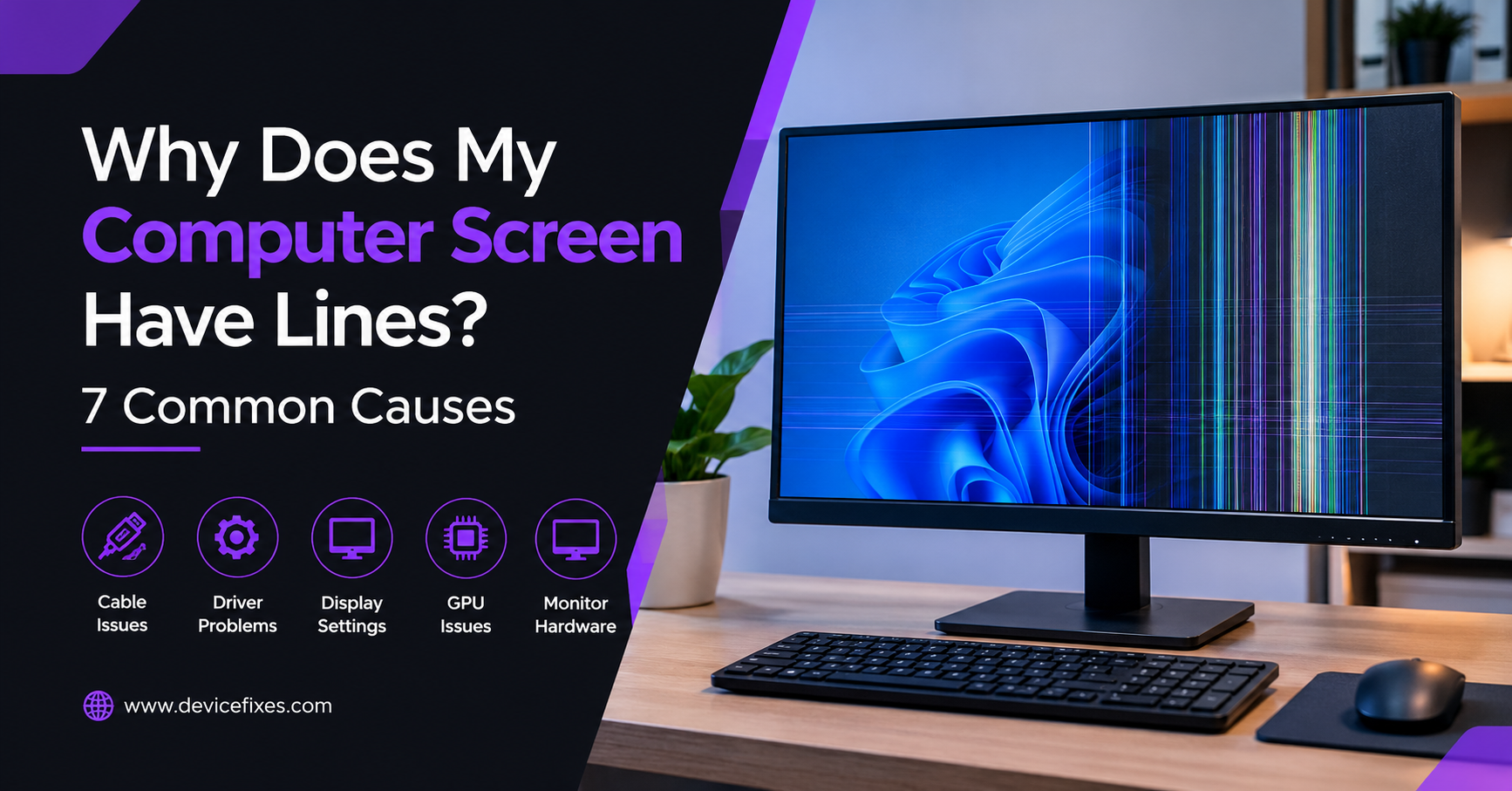
Lines on a computer screen may appear as thin vertical streaks, horizontal lines, colored bars, or black lines. Several issues may cause them, including a loose cable, outdated graphics card drivers, incorrect display settings, or a faulty monitor. It is important to determine the cause of the lines to understand what measures should be taken to eliminate the issue.
There are several ways to troubleshoot lines on a PC screen before taking it to a service centre.
7 Most Common Reasons Why There Are Lines on a Computer Screen
Look at these most common reasons for having lines on a PC screen:
1. Loose or Faulty Display Cable
A loose display cable, or a faulty HDMI, DisplayPort, USB-C, or VGA cable may result in lines on a PC monitor. In particular, the lines may flicker, be horizontal or vertical, or appear intermittently.
How to find out: turn off the computer and monitor, reconnect the display cable, and inspect it for damage. Try using a different display cable or video port if possible.
2. Graphics Drivers are Outdated or Corrupted
Graphics drivers enable communication between the computer’s central processing unit and video card. Issues may arise if the graphics drivers are outdated, corrupt, or incompatible with the current operating system. Lines, colored pixels, flickering, and other graphical anomalies may occur.
How to fix it: In the Device Manager, update the driver for the graphics card. If the graphics drivers were recently updated, it may be helpful to roll back the driver update.
3. The Screen Resolution or Refresh Rate is Set Incorrectly
If the resolution or refresh rate is set incorrectly, the monitor may flicker or exhibit lines and other display issues.
How to check: Open the Settings app, navigate to the Display section, and ensure that the resolution is set to Recommended. From the Advanced display settings menu, ensure that the refresh rate is also compatible with the monitor.
If the lines on the screen appeared after adjusting the display settings, changing the resolution and/or refresh rate back to normal should help identify if it was the cause of the issue.
4. The Monitor is Faulty, or the Display Panel is Damaged
Vertical black lines on a PC monitor, horizontal lines, or multiple colored lines may suggest a hardware issue. If the display panel is physically damaged, the lines may also be accompanied by flickering.
Pressure applied to the monitor screen, drops, and other physical damage may also damage the display panel.
How to check: Disconnect the monitor from the computer and, if possible, access the monitor settings menu. If the lines are still visible on the monitor settings screen, the issue is most likely with the display panel. Avoid applying pressure to the monitor screen, as it may cause additional damage to the display panel.
5. The Graphics Card is Malfunctioning or Overheating
A graphics card malfunction may also be the reason why there are lines on a PC monitor. The GPU may also be overheating, causing unusual artifacts, colored pixels, and flickering. This is especially true for graphics cards that are used for video editing and graphic design.
How to check: Ensure that the graphics card is not being physically stressed (e.g., loose GPU). If possible, check if the lines only appear when playing graphics-intensive games. Ensure that the computer’s fans are not blocked and that the device is not overheating. If lines on the screen appear on multiple monitors, the graphics card or another computer component may need to be replaced.
6. The Monitor is Subject to Magnetic or Electrical Interference
Electrical interference may disrupt the monitor’s output, especially if the display uses older display technology. Interference may be caused by nearby electronic devices or a faulty power cable.
How to fix it: Move large electronic devices away from the monitor, and if possible, test the display on a different power supply.
Modern liquid crystal displays (LCD) and light-emitting diode (LED) monitors are rarely affected by magnetic interference. Thus, it is important to inspect the monitor’s power and video cable connections.
7. There is a Faulty Internal Display Connection or Electronics
Several internal display connections or electronics may malfunction, resulting in lines on a PC screen. The lines may be vertical, horizontal, or present in multiple colors. The monitor screen may also flicker.
If the lines appear on a different monitor and/or with a different cable, a faulty display connection or electronics may be the reason why there are lines on a computer screen.
It is important to avoid opening the monitor without the appropriate technical expertise, as some components may retain electrical charge even when the device is powered off.
How to Find Out What Is Causing Lines on Your PC Screen
Several quick tests can be done to identify the cause of the lines on the screen:
- Take a screenshot: Open it on a different device to check if the lines are visible. If they are visible, the issue may be related to the graphics processing unit. If they are not visible, the issue may be related to the monitor, display cable, or display port.
- Reconnect the display cable: Try using a different display cable and video port.
- Restart the PC: Check if the lines are visible during the boot process. If they are only visible after Windows has loaded, the issue may be related to the graphics drivers.
- Use a different monitor: If the lines are not visible on a different monitor, the issue may be related to the original display.
- Adjust the display settings: Set the resolution and refresh rate to recommended settings and update or roll back the graphics drivers if necessary.
When Should You Get Your Computer Screen Repaired?
If the lines on the screen appeared after basic troubleshooting steps have been taken, the cause of the issue may range from a faulty display port to a faulty graphics card. If the lines are visible across the entire screen, they may also suggest a broader hardware issue.
Black vertical lines that appear even on a disconnected monitor may suggest an internal hardware issue. DeviceFixes offers computer and laptop repair services to help detect the cause of the lines on the screen and recommend the most cost-effective repair option. Book a repair to have the display analysed for potential hardware issues.
Final Thoughts
Lines on the computer screen may be caused by a variety of issues, ranging from a loose display cable to a faulty graphics card. It is important to take advantage of troubleshooting options before spending money on expensive hardware repairs. If the black vertical lines on a PC screen appear after basic troubleshooting steps have been taken, it may be useful to have the display analysed by a professional to detect the cause of the issue.
If you find this article helpful, consider visiting DeviceFixes for more information.

 English
 Arabic
 French
 Spanish
 Portuguese
 Deutsch
 Turkish
 Dutch
Dutch
 Italiano
 Russian
 Romaian
 Portuguese (Brazil)