


How to Open Task Manager on Mac and Manage Apps
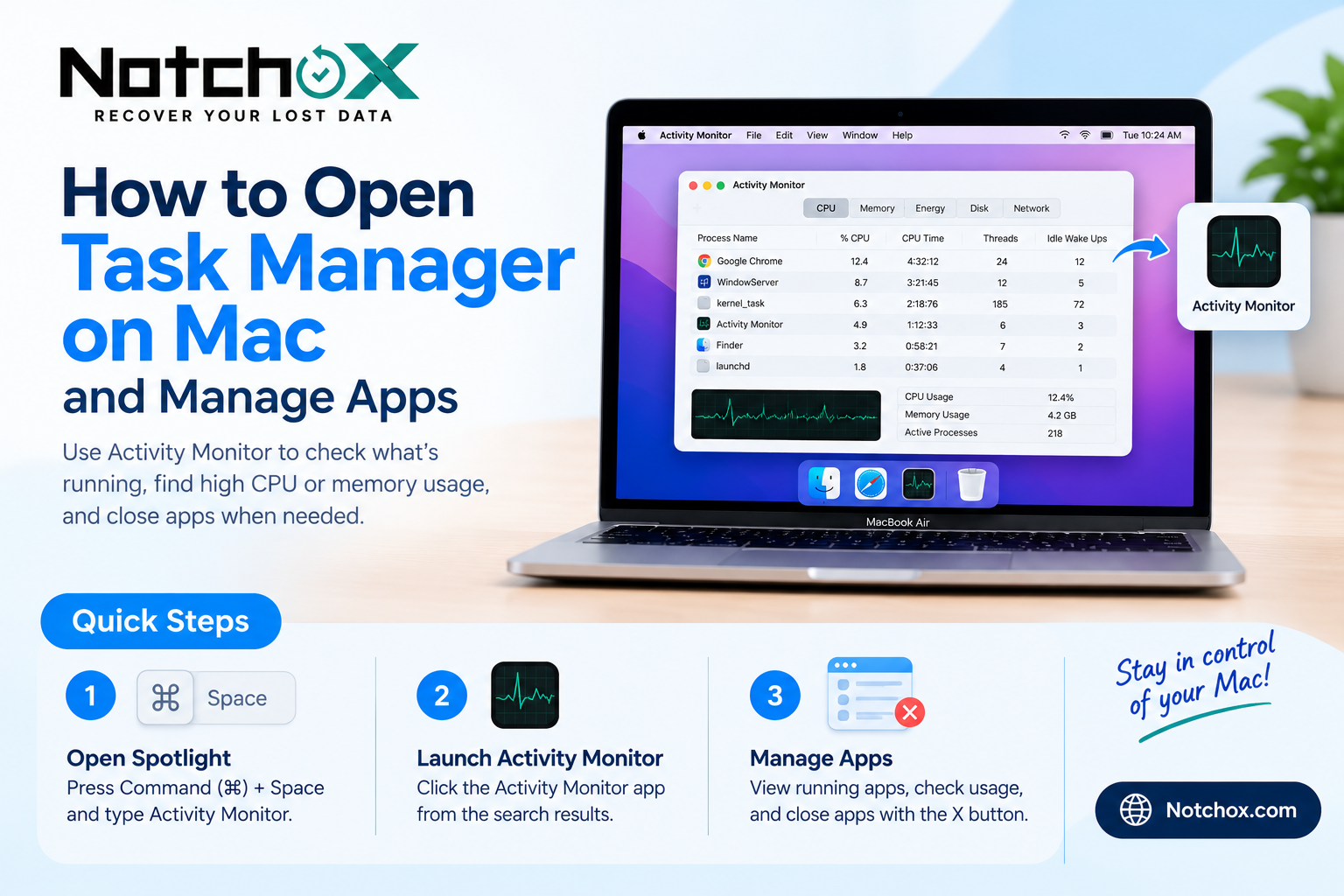
If you have just moved from Windows to Mac, you may be looking for the Task Manager. Task Manager is available on Windows to check active programs, monitor system performance, and terminate unresponsive programs. There are similar tools available for Mac, but they function a little differently. Mac OS X does not have a Task Manager, but it has Activity Monitor and Force Quit Applications. In this, you will discover how to launch Task Manager on Mac and how to control applications running on your Mac using these tools.
Does Mac Have a Task Manager?
There is no Task Manager on Mac. Activity Monitor does, however, perform many of the same tasks. It enables you to view the programs and processes running on your Mac, the amount of CPU and memory each consumes, and if any program is impacting your Mac's performance. If you want to close a frozen application only, there is an alternative useful option called Force Quit. You can open the Task Manager on Mac by using Activity Monitor. To open Task Manager on Mac using Activity Monitor, follow these steps:
Activity Monitor is the most similar to the Windows Task Manager. These are two simple ways to open it.
Using Finder
-
On your Mac, launch Finder.
-
In the sidebar, click on Applications.
-
Double-click on the **Utilities** folder.
-
Click and double-click on Activity Monitor.
Using the Spotlight Search (Mac OS X):
-
Click the Command (⌘) + Space buttons on your keyboard.
-
Click in the search field, and type Activity Monitor.
-
Click on the application in the search results.
-
Hit Enter to open.
You can access the Mac Task Manager equivalent in either method in a matter of seconds.
How to Check Running Applications on Mac
After Activity Monitor launches, you'll see system activity in various categories.
-
CPU: Indicates how much the CPU will consume when running that application.
-
Memory: Shows the amount of RAM in use.
-
Energy: Identifies applications that use more battery power.
-
Disk: Displays the amount of data that applications read and write.
-
The amount of data sent and received by processes is displayed in the Network property.
This information can provide clues to help you know why your Mac might be slow and what apps are consuming too much memory.
How to Force Quit an Application on Mac
In case an application freezes or it stops responding, it can be closed with Force Quit.
-
Press Command (⌘) + Option (⌥) + Esc.
-
Wait for the Force Quit Applications window to appear.
-
Select the application that is not responding.
-
Click Force Quit.
-
Confirm your selection if prompted.
Remember that force quitting an application may cause you to lose unsaved work.
Final Thoughts
Mastering how to open Task Manager on Mac can help you keep an eye on the applications and manage performance issues. For detailed information about the system, use Activity Monitor, and if an application freezes, use Force Quit. For those who want more meaningful Mac and Windows troubleshooting guides, Notchox provides useful resources and data recovery for the supported devices to help users manage and retrieve important data.

 English
 Arabic
 French
 Spanish
 Portuguese
 Deutsch
 Turkish
 Dutch
Dutch
 Russian
 Romaian
 Portuguese (Brazil)
 Greek
Greek