


Zoho Inventory WooCommerce Integration
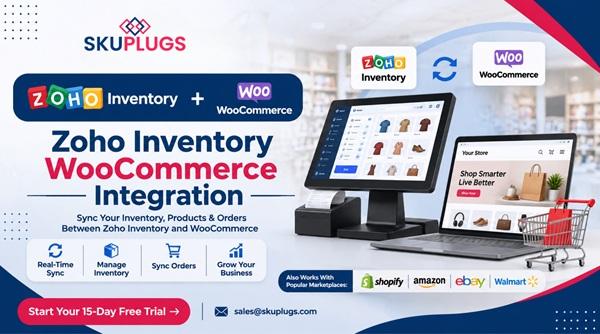
How to Connect Zoho Inventory with WooCommerce for Automated Inventory and Order Management?
Managing an online store involves more than adding products and receiving orders. Businesses also need to track stock levels, process customer purchases, update product information, and make sure inventory records remain accurate. When these activities are handled separately, even routine tasks can become time-consuming.
For businesses using WooCommerce to sell online and Zoho Inventory to manage stock, keeping both platforms updated is especially important. Manually transferring orders and adjusting inventory can lead to delays, incorrect stock information, and unnecessary administrative work.
This is where Zoho Inventory WooCommerce Integration becomes useful. By connecting both platforms, businesses can create a more organized workflow in which product, inventory, and order information can be synchronized automatically. This helps store owners spend less time managing data and more time improving their business.
Understanding Zoho Inventory and WooCommerce
Before setting up an integration, it helps to understand the role of each platform.
What Is Zoho Inventory?
Zoho Inventory is an inventory management solution that helps businesses manage stock, sales orders, purchase orders, warehouses, and fulfillment activities. It provides a centralized view of inventory operations and makes it easier to monitor products as business requirements grow.
For businesses selling through multiple channels, Zoho Inventory can help organize stock information and order management in one place.
What Is WooCommerce?
WooCommerce is an e-commerce platform built for WordPress websites. It allows businesses to create online stores, list products, accept payments, manage customer orders, and customize their shopping experience.
WooCommerce offers flexibility for businesses of different sizes. However, as product catalogs and order volumes increase, maintaining accurate inventory information becomes more challenging without an efficient management process.
Why Connect Zoho Inventory with WooCommerce?
Managing inventory separately from an online store can create unnecessary complications. A product may be sold through WooCommerce while its stock quantity remains unchanged in the inventory system until someone updates it manually.
Connecting both platforms can help reduce these gaps.
Here are some common reasons businesses consider this integration:
-
Keep product information consistent across platforms.
-
Synchronize inventory quantities more efficiently.
-
Transfer online orders into the inventory workflow.
-
Reduce repetitive manual data entry.
-
Minimize the possibility of overselling.
-
Improve order processing and fulfillment.
-
Maintain better visibility into available stock.
-
Support business growth without adding unnecessary manual work.
A connected workflow makes it easier for teams to manage everyday operations without repeatedly switching between different systems.
How Does Zoho Inventory WooCommerce Integration Work?
The integration creates a connection between your WooCommerce store and Zoho Inventory, allowing selected information to move between the platforms.
For example, when a customer places an order on WooCommerce, the order details can be transferred to Zoho Inventory. The business can then manage the order through its inventory and fulfillment workflow.
Similarly, when inventory quantities change in Zoho Inventory, the updated stock information can be reflected in WooCommerce, depending on the synchronization settings.
Typical Synchronization Workflow
A common workflow may look like this:
-
Product information is created or managed in Zoho Inventory.
-
Relevant product details are synchronized with WooCommerce.
-
A customer places an order through the online store.
-
Order information is transferred to Zoho Inventory.
-
Inventory quantities are adjusted based on the transaction.
-
Updated stock information is reflected in WooCommerce.
The exact data flow depends on the integration configuration and the features supported by the selected solution.
Steps to Connect Zoho Inventory with WooCommerce
Setting up the connection becomes easier when product data and business requirements are prepared in advance.
1. Prepare Your Product Information
Start by reviewing the product catalogs in both systems.
Check important details such as:
-
Product names and descriptions
-
SKUs and product identifiers
-
Product variations
-
Selling prices
-
Available stock quantities
-
Product status
Consistent information helps the integration identify matching products and reduces the possibility of synchronization errors.
2. Connect Your WooCommerce Store
The next step is to establish a connection with your WooCommerce website.
Make sure your store is active and that the required access permissions are available. The integration solution will need authorized access to exchange the selected product, inventory, and order information.
3. Connect Your Zoho Inventory Account
After preparing WooCommerce, configure the connection with Zoho Inventory.
This allows both platforms to communicate through the selected integration solution. Check that the correct Zoho organization and inventory settings are being used.
4. Match Products Using SKUs
Product matching is an important part of any inventory integration.
If the same item has different SKUs in WooCommerce and Zoho Inventory, the systems may not identify it correctly. Matching products through consistent SKUs helps maintain reliable inventory synchronization.
Businesses with large product catalogs should pay particular attention to this step.
5. Configure Inventory Synchronization
Decide how stock information should move between the platforms.
For example, Zoho Inventory can be configured as the primary inventory source, with stock changes reflected in WooCommerce. This helps keep online product availability aligned with inventory records.
6. Set Up Order Synchronization
Configure how WooCommerce orders should be transferred into Zoho Inventory.
Depending on the integration settings, relevant order details can be imported automatically, helping teams manage order processing without repeatedly entering the same information.
7. Test the Connection
Before using the integration for everyday transactions, test it with a few products and orders.
Verify that product matching works correctly, order details are transferred as expected, and inventory quantities update properly. Testing can help identify configuration issues before they affect customers.
Key Benefits of Zoho Inventory WooCommerce Integration
A well-configured integration can improve several parts of an online business's daily operations.
More Accurate Inventory Management
When stock changes are synchronized between systems, businesses can maintain more consistent inventory records. This makes it easier to understand product availability and reduces the need for frequent manual adjustments.
Simplified Order Processing
WooCommerce orders can be transferred into Zoho Inventory, allowing teams to manage order-related activities through their inventory workflow.
This can reduce repetitive work and help employees focus on packing, shipping, and customer support.
Reduced Manual Errors
Copying product details, order information, and stock quantities between platforms can lead to mistakes. Automation reduces the number of manual steps involved and helps maintain more reliable records.
Better Control Over Product Availability
Accurate stock information helps businesses avoid situations where customers purchase products that are no longer available.
A reliable Zoho WooCommerce Sync can help keep online stock information updated as inventory changes.
Easier Business Expansion
As an online store grows, managing more products and orders manually becomes increasingly difficult. An automated connection provides a more manageable process for handling higher operational workloads.
Common Inventory and Order Management Challenges
Businesses that manage WooCommerce and Zoho Inventory separately may experience several problems.
Overselling Products
When stock quantities are not updated quickly, a customer may place an order for an item that has already been sold elsewhere. Synchronization can help reduce this risk by keeping inventory information more closely aligned.
Delayed Order Updates
Manually entering online orders into an inventory system creates an additional task for employees. This can delay order processing, especially during busy sales periods.
Inconsistent Product Information
Different product names, SKUs, or variations can make inventory management confusing. Maintaining consistent product data across both platforms helps avoid unnecessary matching problems.
Time-Consuming Stock Management
Checking inventory in multiple systems takes time. Automated updates can reduce repeated checks and make daily operations easier to manage.
Why Choose SKUPlugs for Zoho Inventory and WooCommerce Integration?
Selecting the right integration solution is important because businesses need more than a basic connection. They need a workflow that supports their product catalog, inventory requirements, and order management process.
SKUPlugs helps businesses connect their inventory and e-commerce platforms through automated synchronization. With Zoho Inventory Integration, retailers can connect their inventory operations with WooCommerce and reduce the manual effort involved in managing online sales.
Instead of repeatedly transferring information between systems, businesses can work with a more organized process for handling products, orders, and stock updates.
The objective is simple: make everyday inventory management easier while helping businesses maintain better control over their online operations.
How SKUPlugs Helps Automate Daily Operations
A connected workflow can help businesses manage routine activities more efficiently.
For example:
-
Product details can be synchronized between Zoho Inventory and WooCommerce.
-
Online orders can be transferred into the inventory management workflow.
-
Stock changes can be reflected in the connected store.
-
Product availability can be managed with better consistency.
-
Employees can spend less time on repetitive data entry.
These capabilities can be particularly useful for businesses that manage a large number of products or receive orders regularly.
Best Practices Before and After Integration
A successful connection depends on proper configuration and ongoing data management.
Consider these practices:
Maintain Consistent SKUs
Use matching SKUs for the same products in both systems. This makes product identification and synchronization more reliable.
Review Product Variations
If your WooCommerce store sells products in different sizes, colors, or styles, check that variations are matched correctly.
Choose a Primary Inventory Source
Decide which platform should be treated as the main source for stock information. This helps prevent confusion when inventory changes occur.
Monitor Synchronization Activity
Review synchronization results regularly and investigate failed updates. Addressing issues early can help prevent larger inventory discrepancies.
Test Important Changes
Whenever you make major changes to products, pricing, or inventory settings, test the workflow to make sure information continues to move correctly.
Is WooCommerce Integration Suitable for Growing Businesses?
Yes. Businesses often begin with a manageable number of products and orders, but their operational requirements change as sales increase.
A process that works for a small online store may become inefficient when hundreds of orders need to be processed. Managing stock manually across multiple systems can also become more difficult as the business expands.
Using WooCommerce Integration with Zoho Inventory can help create a more organized approach to inventory and order management. It reduces repetitive tasks and gives businesses a better foundation for handling growth.
FAQs
Q1: What is Zoho Inventory WooCommerce Integration?
A1: It connects Zoho Inventory with WooCommerce so businesses can synchronize relevant product, inventory, and order information between both platforms.
Q2: Why should I connect Zoho Inventory with WooCommerce?
A2: Connecting both platforms can reduce manual data entry, improve inventory accuracy, and simplify online order management.
Q3: Can WooCommerce orders be transferred to Zoho Inventory automatically?
A3: Yes, an appropriate integration setup can transfer WooCommerce order information into Zoho Inventory for further processing.
Q4: Can inventory quantities sync between Zoho Inventory and WooCommerce?
A4: Yes, inventory synchronization can help reflect stock changes between both platforms, depending on the configured workflow.
Q5: Does Zoho WooCommerce Sync help prevent overselling?
A5: Keeping stock information updated can reduce the risk of customers ordering products that are no longer available.
Q6: Is Zoho Inventory WooCommerce Integration suitable for small businesses?
A6: Yes, small businesses can use automation to reduce repetitive work and establish organized inventory processes as they grow.
Q7: Do product SKUs need to match in both systems?
A7: Matching SKUs is recommended because it helps the integration identify products correctly and synchronize relevant information.
Q8: Can I Connect Zoho to WooCommerce without manually entering every order?
A8: Yes, an automated integration can transfer supported WooCommerce order information to Zoho Inventory without repetitive manual entry.
Q9: How does SKUPlugs help with WooCommerce and Zoho Inventory?
A9: SKUPlugs helps connect both platforms and automate the exchange of relevant inventory and order information.
Q10: What should I check before starting the integration?
A10: Review product SKUs, variations, stock quantities, account permissions, and synchronization requirements before activating the connection.
Conclusion
Managing an online store becomes more complicated when inventory and orders are handled separately. Connecting Zoho Inventory with WooCommerce gives businesses an opportunity to organize these activities through a more automated workflow.
Zoho Inventory WooCommerce Integration can help reduce manual updates, improve stock visibility, simplify order processing, and support businesses as their online operations expand. With accurate product matching and the right synchronization settings, retailers can manage everyday tasks with greater efficiency.
SKUPlugs helps businesses build a connected workflow between Zoho Inventory and WooCommerce, making inventory and order management easier to handle. For businesses looking to reduce repetitive work and improve their e-commerce operations, automation can be a valuable step toward long-term growth.

 English
 Arabic
 French
 Portuguese
 Deutsch
 Turkish
 Dutch
 Italiano
 Russian
 Romaian
 Portuguese (Brazil)
 Greek